A simple photo can look completely different with the right lighting, outfit, background, and editing style. AI photo editing tools make it possible to transform an ordinary portrait into a cinematic metro photo, a black-and-white attitude portrait, a luxury lifestyle image, or a professional fashion shot. In this article, you will find 5 boy photo editing prompts for AI inspired by five distinct portrait styles. Each prompt is ready to copy and customize using your own reference photo. Instead of giving you five nearly identical prompts, this collection covers different looks. You can choose the style that suits your personality, use the prompts as written, and adjust the details to create a more personal result.
What Are Boy Photo Editing Prompts?
Boy photo editing prompts are written instructions that tell an AI image editor how to transform a photograph. They describe the subject’s clothing, pose, lighting, background, camera angle, and overall mood. For example, one prompt might describe a young man sitting in a metro station under warm cinematic lights. Another might request a black-and-white portrait with a leather jacket and red graphic accents. The more clearly you describe the intended result, the easier it is for an AI tool to understand your creative direction. However, results can vary between tools, and a detailed prompt cannot guarantee an exact match.
These prompts are useful for:
- Creating stylish Instagram and Facebook profile pictures.
- Experimenting with cinematic and luxury portrait styles.
- Making dramatic black-and-white photographs.
- Trying formal outfits without arranging a studio shoot.
- Exploring different visual concepts using one reference photo.
Before Using These AI Photo Editing Prompts
A few simple steps can help you get better results from the prompts below.
1. Choose a clear reference photo. Use a well-lit photograph in which your face is visible. Avoid heavily filtered images or photographs with your face hidden by shadows.
2. Upload the photo to your chosen AI editor. Select an image-editing or image-to-image feature if the tool provides one. A text-only image generator may create a new person instead of editing your photograph.
3. Copy the complete prompt. Include the instructions about facial identity, clothing, background, lighting, and composition.
4. Review the generated image. Check the face, hands, accessories, clothing, and background for noticeable errors. Regenerate or adjust the prompt if necessary.
5. Customize the result. You can change the shirt color, sunglasses, background, or lighting while keeping the main visual concept.
The prompts below use a vertical 3:4 composition. If your AI editor does not support that exact ratio, choose the closest available vertical format.
1. Cinematic Metro Station Boy Photo Editing Prompt
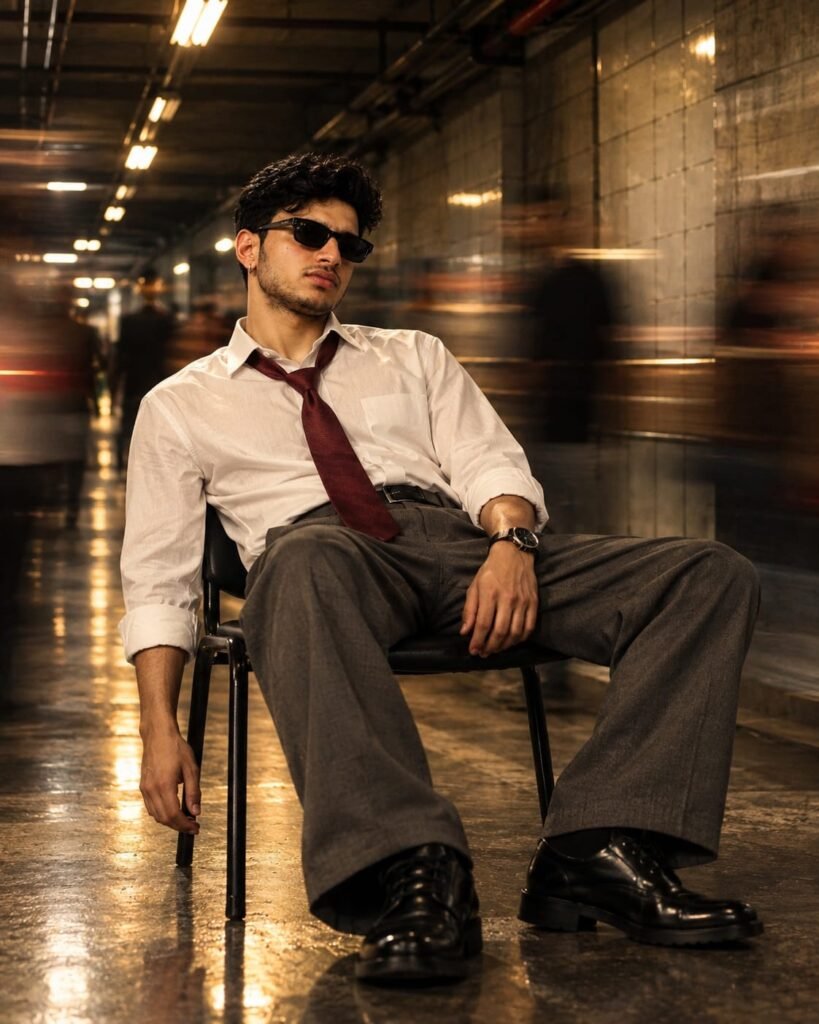
Copy This AI Photo Editing Prompt
- Create a photorealistic cinematic fashion portrait using my uploaded photo as the identity reference. Preserve my original facial features, face shape, hairstyle, skin tone, and recognizable appearance.
- Show me sitting casually on a black chair inside a modern underground metro station. I am wearing a slightly relaxed white formal shirt with rolled-up sleeves, a loosely tied dark maroon necktie, charcoal grey formal trousers, polished black leather shoes, dark rectangular sunglasses, and a wristwatch.
- Use a low-angle, full-body composition. My posture should look relaxed and confident, with one arm hanging naturally beside the chair and the other resting comfortably near my lap.
- Add warm golden overhead lights, reflective flooring, tiled station walls, and subtle motion blur from commuters moving in the background. Keep the background atmospheric while maintaining clear details on the main subject.
- Use cinematic shadows, realistic skin texture, natural fabric folds, detailed leather shoes, and professional editorial photography. Apply a warm brown and amber color grade with realistic highlights and shadows.
- Keep my face sharp and naturally proportioned. Maintain realistic anatomy, believable clothing, and accurate perspective.
Vertical 3:4 composition, high detail, photorealistic, no text, no watermark.
How to Customize This Look
You can modify this prompt without changing its overall cinematic style.
- For a more formal look: Replace the relaxed shirt with a neatly fitted white shirt and a properly tied tie.
- For a darker aesthetic: Ask for deeper shadows and a slightly cooler color grade.
- For a casual outfit: Replace the formal shirt with a black shirt or a fitted dark T-shirt.
- For a different background: Use a modern railway platform, an underground passage, or an urban corridor, while keeping the lighting consistent.
If the background becomes too busy, add the instruction: “Keep the subject visually dominant and reduce background detail.”
Best Use
This prompt works well for full-body portraits, fashion edits, cinematic social media posts, and photos where you want a confident but understated appearance.
2. Black and White Boy Photo Prompt with Red Accents
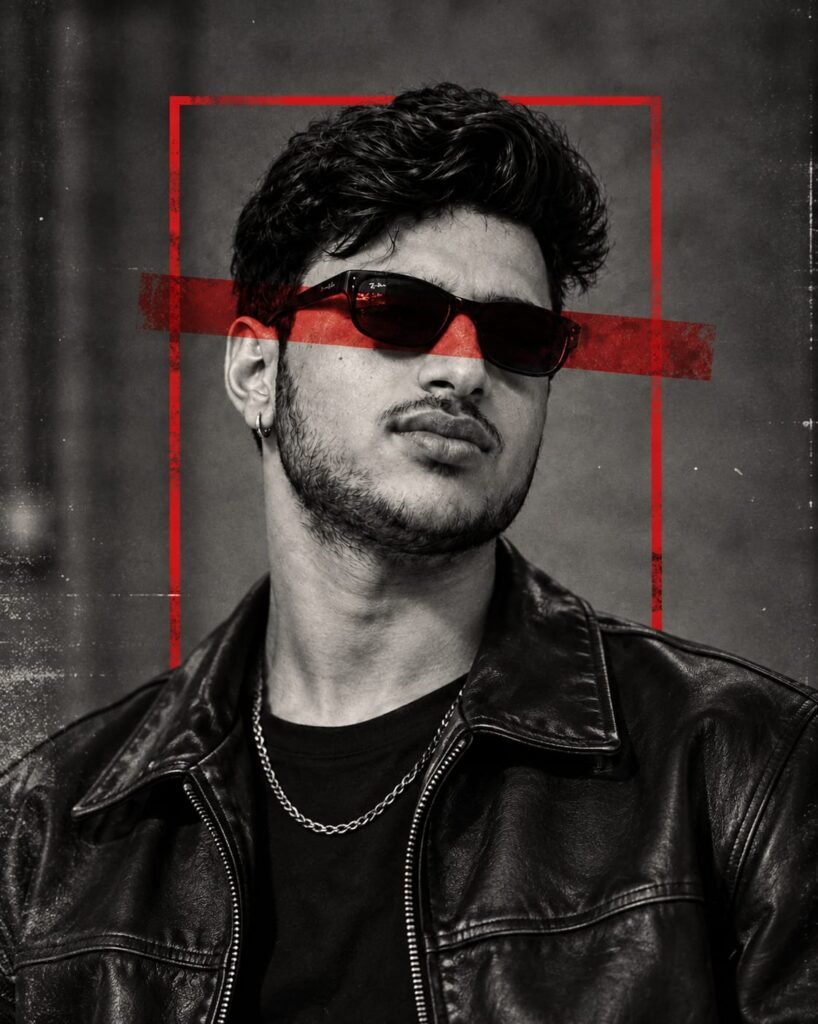
Copy This AI Photo Editing Prompt
- Create a high-contrast black-and-white editorial portrait using my uploaded photo as the identity reference. Preserve my recognizable facial features, hairstyle, face shape, and natural skin texture.
- Frame me from the chest upward, wearing a black leather jacket over a plain black T-shirt, dark rectangular sunglasses, and a simple silver chain necklace. Give me a calm, confident expression with my head turned slightly to one side.
- Use a textured charcoal-grey studio background with subtle film grain and a vintage photographic finish. Add a thin distressed red rectangular frame behind my head and a broad translucent red horizontal graphic strip crossing the background at eye level.
- Keep the portrait primarily monochrome, with realistic leather texture, detailed hair, natural facial proportions, deep shadows, and controlled highlights. The red accents should be the only strong color elements.
- Use professional fashion-editorial lighting and a balanced composition. Keep the red graphics behind the subject without obscuring important facial details.
- Avoid excessive skin smoothing, artificial facial changes, distorted sunglasses, and unrealistic reflections.
Vertical 3:4 composition, photorealistic detail, no text, no watermark.
How to Get a Better Monochrome Result
The main goal is to preserve detail while creating strong contrast.
- Ask for visible leather texture instead of a completely black jacket.
- Keep the background charcoal grey rather than pure black.
- Use subtle film grain if you want a vintage editorial finish.
- Make the red accents part of the background instead of placing them over the entire face.
If the red strip covers too much of the face, replace “crossing at eye level” with “running horizontally behind the head.”
Best Use
Choose this prompt for attitude portraits, black-and-white profile photos, fashion-inspired posts, and dramatic social media edits.
3. Luxury Lifestyle Boy Photo Prompt with Black Shirt and White Trousers
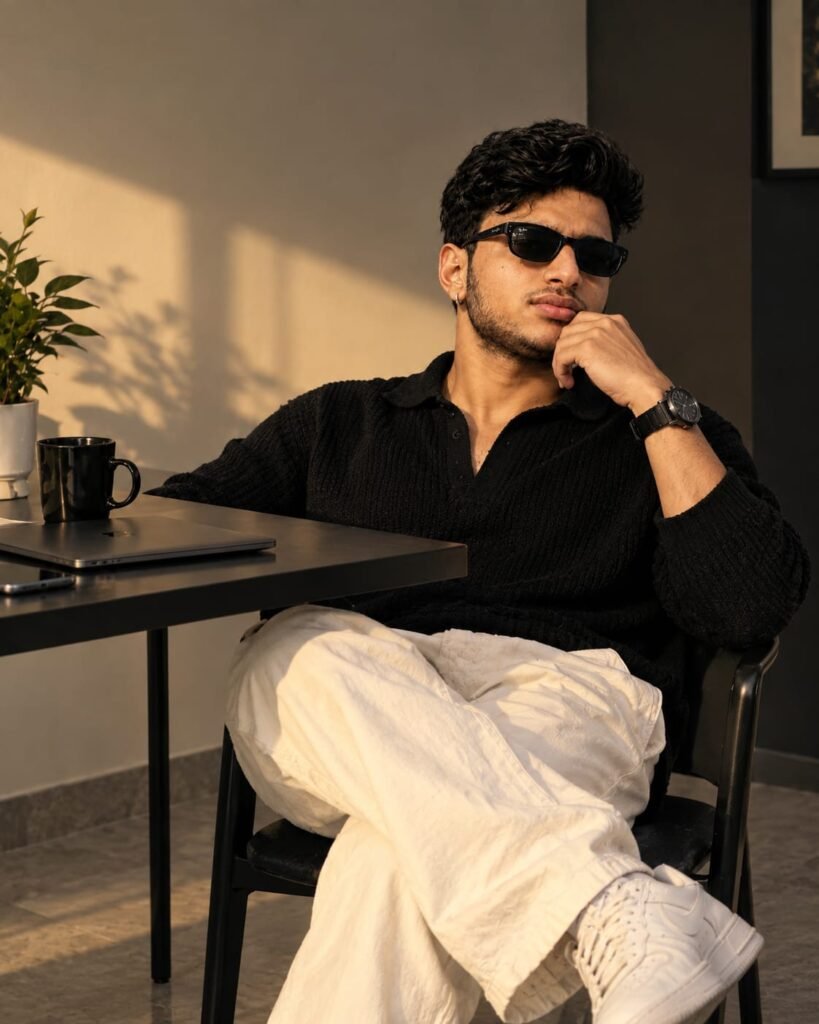
o Editing Prompt
- Create a realistic luxury lifestyle portrait using my uploaded photo as the identity reference. Maintain my original facial identity, hairstyle, skin tone, and natural facial proportions.
- Show me sitting comfortably on a modern black chair beside a dark table in an elegant minimalist room. I am wearing a black textured knit polo shirt, relaxed white trousers, clean white sneakers, a black wristwatch, and subtle accessories.
- Pose me with one leg crossed over the other and one hand resting thoughtfully near my chin. My expression should be calm, composed, and confident.
- Place a closed slim laptop and a black coffee mug on the table. Add a small green plant near the wall. Use a warm beam of natural sunlight entering from the left side, creating soft shadows and realistic highlights across the room.
- Use neutral beige walls, dark furniture, natural fabric textures, realistic skin detail, and a refined warm color grade. The overall mood should feel like a premium lifestyle magazine photograph.
- Maintain believable body proportions, natural hands, realistic clothing folds, and accurate perspective. Avoid plastic-looking skin, exaggerated facial retouching, and unnecessary decorative objects.
Vertical 3:4 composition, professional lifestyle photography, high detail, no text, no watermark.
Make This Prompt Match Your Personal Style
You can adapt the scene to create different lifestyle portraits.
| Desired Look | What to Change |
| Minimalist style | Keep the room uncluttered and use neutral colors. |
| Dark luxury look | Use charcoal walls, dark furniture, and controlled highlights. |
| Casual daily look | Replace the knit polo with a plain T-shirt. |
| Smart casual look | Add a lightweight blazer over the shirt. |
| Outdoor lifestyle | Replace the indoor setting with a shaded café terrace. |
Keep the number of objects limited. A laptop, mug, and plant are enough to establish the setting without distracting from the portrait.
Best Use
This prompt is suited to personal branding, lifestyle portraits, casual fashion posts, and profile photographs that need a clean, sophisticated appearance.
4. Blue Cinematic Boy Photo Prompt with Double-Exposure Effect
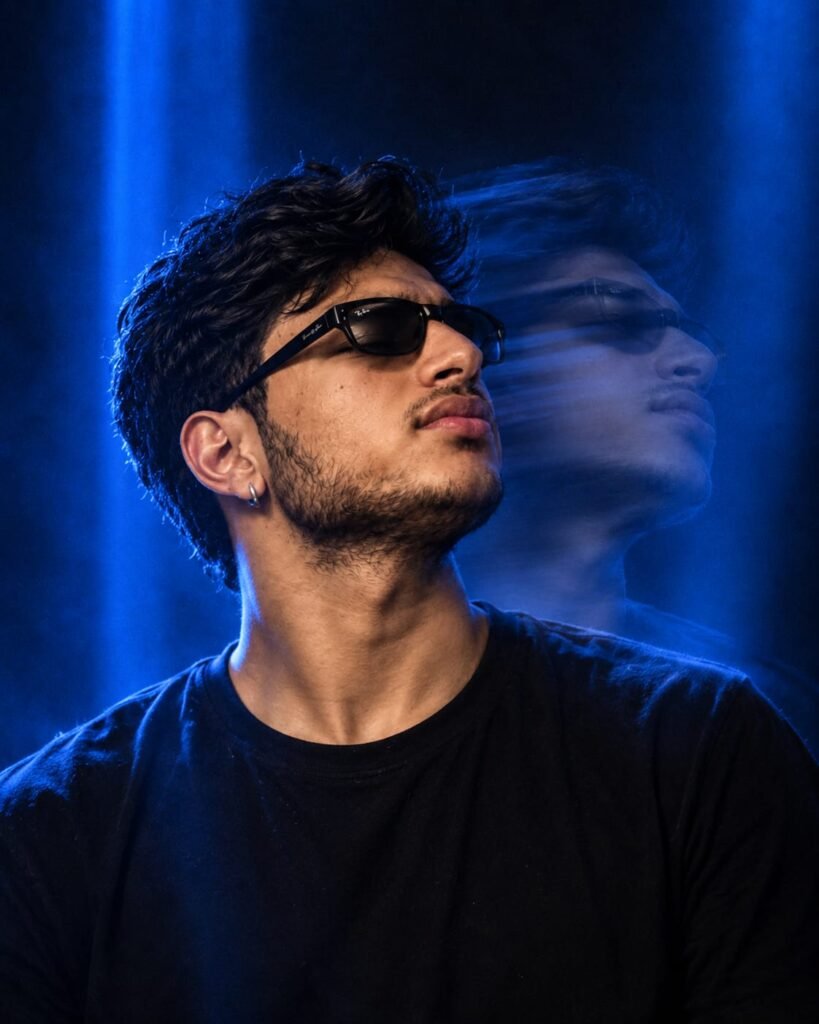
Copy This AI Photo Editing Prompt
- Create a photorealistic cinematic close-up portrait using my uploaded photo as the identity reference. Preserve my original face, hairstyle, skin tone, and recognizable features.
- Show me wearing a plain black T-shirt, dark rectangular sunglasses, and a small silver hoop earring. Turn my face slightly upward and to the side, with a serious, confident expression.
- Use a deep navy-blue studio background with intense blue light beams coming from above and behind me. Add a subtle semi-transparent motion echo of my head and shoulders behind the main subject, offset slightly to the right to create a controlled double-exposure effect.
- Keep the primary face sharp and detailed. Use realistic skin texture, natural facial anatomy, soft rim lighting around the hair, and cinematic shadows. The secondary ghost image should remain subtle and atmospheric rather than looking like a second fully formed person.
- Use a dark blue and black color palette with carefully controlled highlights. Create the mood of a professional music-video still or cinematic fashion campaign.
- Avoid distorted facial features, duplicated eyes, unnatural skin, and excessive motion trails.
Vertical 3:4 composition, close-up framing, realistic photography, no text, no watermark.
Tips for the Blue Cinematic Effect
- Keep the face sharp: The main subject should remain the visual focus.
- Control the blue lighting: Use blue highlights around the hair and shoulders rather than covering the entire face in blue.
- Reduce the motion trail if needed: Ask for a faint, semi-transparent duplicate behind the main subject.
- Maintain natural skin tones: A small amount of warm skin color can help the face stand out against the blue background.
If the AI generates an unwanted second face, remove the double-exposure instruction and request a simple blue rim-light effect instead.
Best Use
This prompt is useful for cinematic profile photos, music-inspired portraits, dark aesthetic edits, and dramatic close-up photography.
5. Blue Suit Boy Photo Prompt with a Red Rose
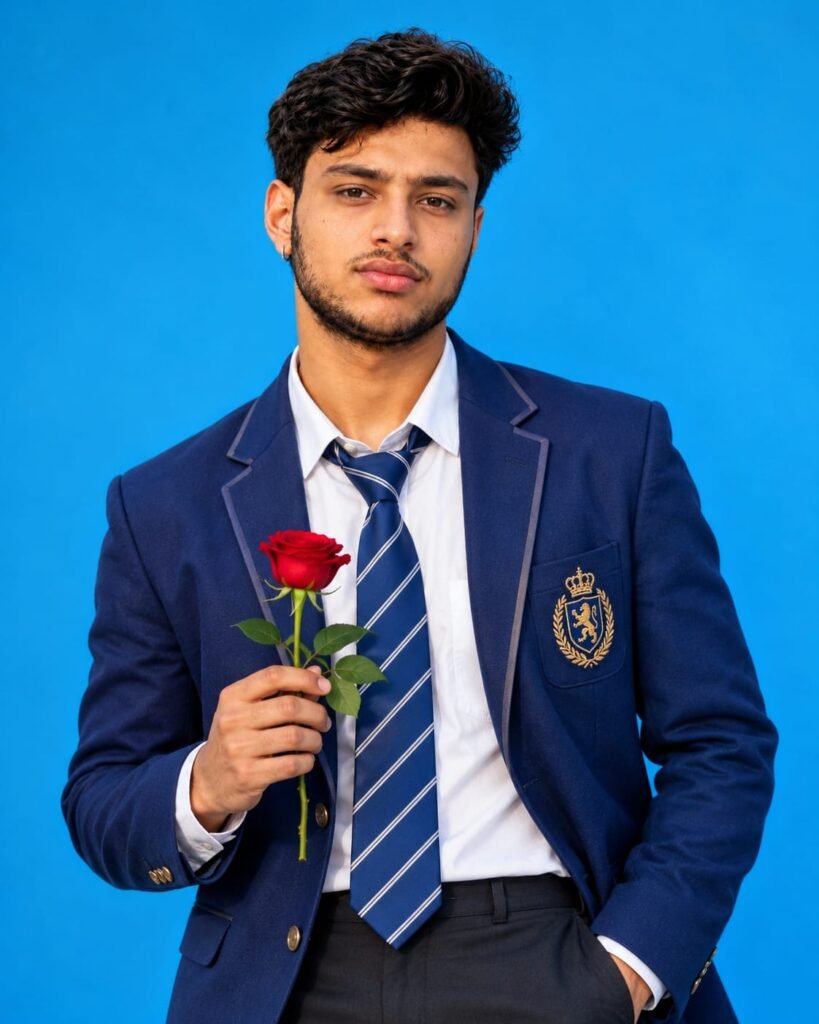
Copy This AI Photo Editing Prompt
- Create a photorealistic fashion portrait using my uploaded photo as the identity reference. Preserve my natural facial features, hairstyle, skin tone, and recognizable identity.
- Show me standing against a clean, bright blue studio background. I am wearing a fitted navy-blue blazer with subtle lapel detailing, a crisp white dress shirt, a navy tie with thin diagonal white stripes, and dark formal trousers.
- Place a single fresh red rose in my hand, held naturally at chest level. Keep the other hand casually inside my trouser pocket. Use a relaxed upright posture and a calm, confident expression while looking toward the camera.
- Use balanced studio lighting, realistic skin texture, detailed tailoring, natural fabric folds, and accurate hand anatomy. Make the red rose stand out against the navy-blue outfit and blue background.
- Keep the composition clean and uncluttered, with realistic colors and professional fashion photography. Avoid artificial facial smoothing, exaggerated body proportions, distorted fingers, and fake-looking clothing textures.
Vertical 3:4 composition, half-body to three-quarter framing, high detail, no text, no watermark.
Customize the Suit and Background
You can change a few details to create a different formal portrait without rewriting the entire prompt.
- Replace the navy blazer with a black or charcoal-grey suit.
- Change the tie to a plain dark tie for a simpler formal look.
- Use a muted blue or grey studio background for a less vibrant appearance.
- Remove the rose if you want a conventional professional headshot.
- Ask for a waist-up composition if the face and outfit are more important than the full body.
If the rose or fingers look distorted, regenerate the image or request a closer crop that keeps the hand and flower clearly visible.
Best Use
This prompt is suitable for formal fashion portraits, romantic concepts, profile pictures, and polished studio-style images.
How to Choose the Right AI Photo Editing Prompt
The best prompt depends on the mood you want to create. Use this comparison to select a starting point.
| Prompt | Main Visual Feature | Best For |
| Metro Station | Warm lights and motion blur | Cinematic fashion |
| Black and White | Monochrome with red accents | Attitude portraits |
| Luxury Lifestyle | Natural sunlight and minimalist interior | Smart casual photos |
| Blue Cinematic | Blue light and motion echo | Dramatic close-ups |
| Blue Suit and Rose | Formal outfit and bright background | Fashion and romantic portraits |
You do not need to use all five prompts on the same photo. Start with one style, review the result, and experiment with another if you want a different appearance.
How to Fix Common AI Photo Editing Problems
Even a detailed prompt can produce unexpected results. These adjustments can help you improve the output without changing the entire concept.
The AI Changes My Face
Use a clearer reference photo and retain the identity-preservation instructions. If the editor has a reference-strength or image-guidance setting, experiment with it. Higher reference strength may help preserve the original appearance, although the effect varies by tool.
The Clothes Look Different from the Prompt
Describe the clothing more precisely. Instead of saying “formal outfit,” specify the blazer color, shirt type, tie pattern, and trousers. If the tool supports selective editing, change only the affected clothing area.
The Hands or Fingers Look Unnatural
Hands can be difficult for image generators. Try a simpler pose, keep the hand clearly visible, or request a crop that places less emphasis on the fingers. Generate another version if the problem remains.
The Background Looks Too Busy
Reduce the number of objects and ask for a clean background. For the metro style, keep commuters blurred. For the luxury style, limit the scene to a table, chair, laptop, and mug.
The Image Looks Too Artificial
Ask for realistic skin texture, natural shadows, believable fabric folds, and restrained retouching. Avoid adding many conflicting effects to the same prompt.
The Output Is Cropped Incorrectly
Choose a vertical aspect ratio before generating the image if the tool supports it. Keep the subject away from the edges so that cropping does not cut off the head, shoes, or important accessories.
Frequently Asked Questions
1. Which AI photo editing prompt is best for boys?
It depends on the desired style. The metro station prompt works well for cinematic fashion, the black-and-white prompt creates a dramatic editorial look, and the luxury lifestyle prompt offers a more natural appearance.
2. Can I use these prompts with my own photo?
Yes. Upload a photo to an AI editor that supports reference-image editing, then paste the relevant prompt. The result may still differ from your original face, so review it carefully.
3. Which AI tools can I use for these prompts?
You can try an AI image editor that supports uploaded reference photos and text instructions. Available features differ between services and plans. Check whether your chosen tool supports image editing, portrait generation, and the required aspect ratio.
4. Are these prompts free to use?
The prompt text in this article can be copied and customized. However, the AI service you use may have free usage limits, paid plans, or separate image-generation charges.
5. Can I generate a 3:4 portrait with these prompts?
The prompts request a vertical 3:4 composition. If your tool does not support that exact ratio, choose the closest available vertical format and crop the image afterward.
6. How can I keep my original face in the AI-generated image?
Upload a clear reference photo and include instructions to preserve your facial identity, hairstyle, skin tone, and face shape. If the editor offers image-guidance controls, adjust them to prioritize the reference image. Exact identity preservation is not guaranteed.
7. Why does the AI generate different results from the same prompt?
Image generators use different models and settings. Random variation, reference-image strength, prompt interpretation, and available editing controls can all affect the result. Generating another version may produce a closer match.
8. Can I change the clothes or background in these prompts?
Yes. You can replace the shirt, suit, trousers, or background description while retaining the lighting and composition instructions. Make one or two changes at a time to understand how each change affects the result.
9. How can I create a realistic cinematic portrait?
Use a clear reference photo, describe the lighting and background, and request natural skin texture, realistic shadows, and believable anatomy. Avoid excessive blur, exaggerated color effects, and overly smooth skin.
10. Can I post AI-edited photos on Instagram or Facebook?
You can generally share images according to the rules of the platform and the AI service you use. Check the relevant terms if you plan to use the images commercially, and follow any applicable disclosure requirements. Do not use an edited image to mislead people about a real event or situation.
11. Why do sunglasses, watches, and other accessories sometimes look incorrect?
Small accessories can be difficult for image generators to reproduce accurately. Describe their shape and position clearly, simplify the pose, or regenerate the image. Inspect the final result before posting it.
12. Can I use one prompt to create multiple photo styles?
You can reuse your reference photo with different prompts. For the most noticeable changes, switch the setting, clothing, lighting, and composition rather than changing only one adjective.
Final Thoughts
These five boy photo editing prompts offer different ways to experiment with AI portraits, from warm cinematic scenes and monochrome fashion edits to luxury lifestyle photography and formal studio looks. Choose the style that suits your preferences, use the matching prompt, and make small adjustments after reviewing the first result. A clear reference photo and a focused description will usually be more useful than adding unnecessary effects or overly complicated instructions. The aim is not simply to make a photo look heavily edited. It is to create a portrait with a clear visual style while keeping the subject recognizable and the final image believable.