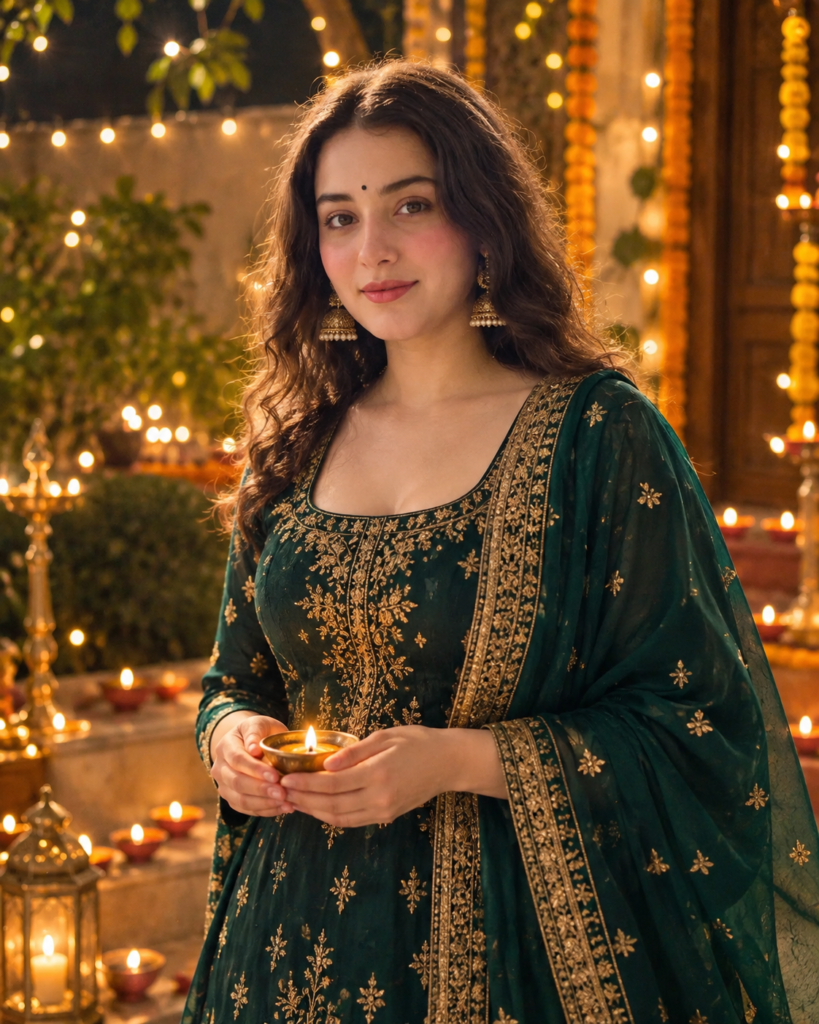
Want to create a beautiful Diwali portrait using your own photo? With an AI photo editing tool and the right prompt, you can transform an ordinary picture into a festive portrait featuring an emerald-green traditional outfit, golden embroidery, and a glowing diya. In this guide, you will find an original Diwali AI photo editing prompt for girls designed to create a premium, realistic festive look. You will also learn which photo to upload, exactly where to paste the prompt, and how to improve the result if the AI changes your face or produces unnatural details.
What Is This Diwali AI Photo Prompt?
This prompt is designed to create a traditional Diwali portrait using your uploaded photo as the identity reference. The concept combines an emerald-green outfit, gold embroidery, a brass diya, and a warmly illuminated festive background. The intended result is a realistic portrait with natural skin texture, elegant lighting, and a soft golden glow.
Prompt details:
- For: Girls and women who want a festive portrait of themselves
- Outfit: Emerald-green traditional Indian attire with gold embroidery
- Main prop: A glowing brass diya held in both hands
- Background: A decorated courtyard with diyas, marigold garlands, and warm lights
- Image style: Premium, realistic, cinematic portrait
- Suggested aspect ratio: 4:5 for a vertical portrait
The final appearance depends on the AI tool, the quality of your uploaded photo, and its identity-preservation features.
How to Create a Diwali AI Photo From Your Own Face
Before using the prompt, choose a clear photo in which your face is visible. A front-facing photo with good lighting generally makes it easier for an AI tool to use your facial features as a reference.
Step 1: Select Your Original Photo
Choose a photo of yourself that you want to transform into a Diwali portrait.
For better results, try to use a photo with:
- A clearly visible face
- Natural lighting and reasonable image quality
- Minimal blur or obstruction around the face
- A visible head and upper body, if possible
You do not need to wear a green outfit in your original photo. The prompt instructs the AI to create the festive outfit.
Step 2: Open an AI Image Generator
Open an AI image-generation or photo-editing tool that supports uploading a reference photo and generating an edited image. Upload your original photo using the tool’s image-upload option. If the tool provides a setting named Face Reference, Identity Reference, or Character Reference, you can use it to help preserve your appearance.The exact interface and available options will vary between tools.
Step 3: Copy the Complete Diwali AI Photo Prompt
Copy the entire prompt below, beginning with “Create an ultra-realistic” and ending with “Do not ask me additional questions.” Do not copy only the headings or selected lines. The complete prompt contains the outfit, lighting, background, body-proportion, and face-preservation instructions needed for the intended look.
Step 4: Where Should You Paste the Prompt?
This is the most important step.
After uploading your photo, locate the main text box used to describe the image you want to generate. It may be labelled Prompt, Describe your image, Enter a prompt, or something similar.
- Upload your original photo in the image-upload or reference-image section.
- Copy the complete prompt from Step 3.
- Paste it into the main text prompt box.
- If the tool has a separate negative-prompt box, you may place the negative instructions there; otherwise, leave the full prompt together in the main prompt box.
- Select a vertical 4:5 aspect ratio if that option is available.
- Click Generate or the equivalent button to create your image.
Remember: Upload your photo in the image-reference section, but paste the written prompt into the text prompt box. Do not paste the prompt into the image-upload field.
Copy-and-Paste Diwali AI Photo Prompt for Girls
Tips for Better Diwali AI Photo Results
Even with a detailed prompt, different AI tools may produce different results. These practical tips can help you improve the image.
If the Face Looks Different
Try uploading a clearer reference photo. If your tool offers identity-reference controls, use them where available. Avoid repeatedly changing the facial description because excessive changes can make the generated result less consistent with your original appearance.
If the Outfit Does Not Look Right
Regenerate the image with the same prompt or use a tool that supports editing an existing result. Make sure the instruction about the emerald-green outfit and gold embroidery remains included.
If the Hands or Diya Look Unnatural
Hands holding small objects can be difficult for image generators. Try generating another version or using an editing feature to correct the hands and diya.
If the Image Looks Too Artificial
Use a tool that supports realistic image generation. Keep the natural skin texture and lighting instructions in the prompt, and avoid adding excessive beauty effects or exaggerated glow.
Can You Use This Prompt With Any AI Tool?
You can try this prompt in AI image generators that accept text instructions and uploaded reference images. However, not every tool supports the same features. Some tools may generate a new image inspired by your reference instead of preserving your face accurately. Others may interpret the outfit, pose, or background differently. The prompt is designed to encourage identity preservation, but it cannot guarantee an exact facial match or identical results across different platforms.
Frequently Asked Questions
1. Is this Diwali AI photo prompt for girls or boys?
This particular prompt is designed for girls and women who want to create an emerald-green traditional Diwali portrait with a glowing diya.
2. Where do I paste the Diwali AI photo prompt?
Paste the complete prompt into the main text prompt box of your AI image generator. Upload your original photo separately in the image-upload or reference-image section.
3. Will the AI keep my original face?
The prompt instructs the AI to preserve your facial identity, skin tone, and natural facial proportions. The actual result depends on the tool and its reference-image capabilities, so an exact match is not guaranteed.
4. Do I need to wear a green outfit in my original photo?
No. The prompt asks the AI to create an emerald-green traditional outfit. However, the final result may vary depending on the AI tool and reference image.
5. Can I use this prompt to create a social media portrait?
Yes. The suggested vertical 4:5 composition can work well for portrait-style social media posts. You can select another aspect ratio if your chosen platform or image generator requires it.
Final Thoughts
This Diwali AI photo editing prompt gives you a starting point for creating a festive portrait with an emerald-green outfit, gold embroidery, and a warm diya glow. By uploading a clear reference photo and pasting the complete prompt into the correct text box, you can explore this style without writing the instructions from scratch. Try the prompt, review the generated image, and make small adjustments if necessary. Before publishing or sharing the result, check that the face, hands, outfit, and background look natural. The goal is not just to create a beautiful festive image, but to make the process simple enough for beginners to follow.