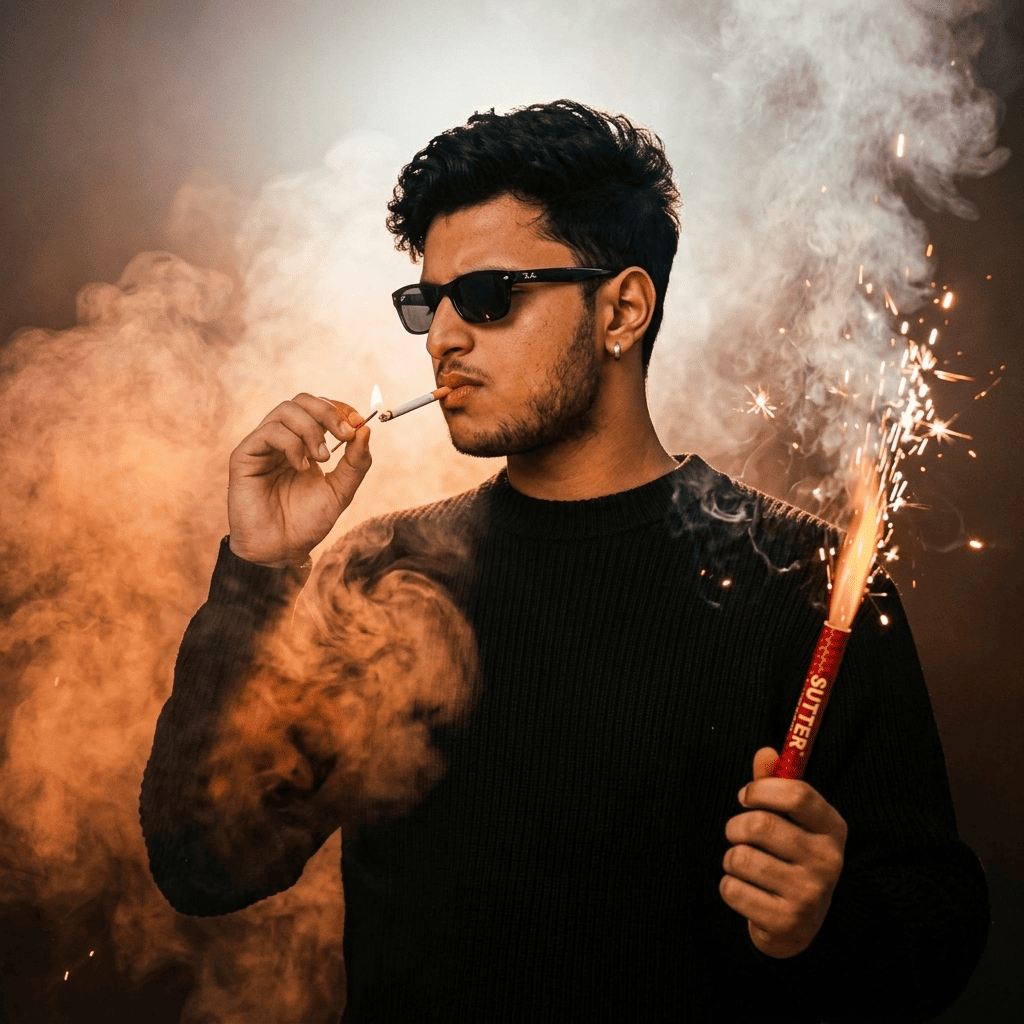
Want to create a dramatic Diwali portrait with black sunglasses, glowing sparklers and cinematic smoke? An AI image editor can help you create this style using your own photograph as a reference. This guide explains how to create a Diwali image for stylish men using an AI photo prompt. You will find the prompt placement instructions, recommended image settings, and practical fixes for common problems such as a changed face, unnatural hands or excessive smoke. The result depends on the AI tool, your reference photo and the settings you choose. You may need more than one attempt to get the look you want.
What Does This Diwali AI Photo Prompt Create?
The intended result is a vertical, cinematic portrait of a young man celebrating Diwali. The visual style combines festive lighting with a dark outfit and dramatic effects.
- Black sunglasses: Add a modern, stylish appearance.
- Dark outfit: A black textured sweater helps create contrast with the bright sparks.
- Fireworks and sparklers: Create the festive Diwali atmosphere.
- Smoke effects: Add depth and a dramatic background.
- Warm cinematic lighting: Orange highlights contrast with the darker surroundings.
These are the intended visual elements, not guaranteed results. Some AI tools may interpret the same prompt differently, particularly when generating hands, small objects and complex smoke effects.
Copy-and-Paste Diwali Image Prompt for Stylish Men
How to Use the Prompt in an AI Photo Editor
The most important step is to upload your photograph in the image-reference section and paste the written prompt into the main prompt box. These are usually separate fields.
Step 1: Open an AI Image Editing Tool
Choose an AI image generator or photo editor that supports both reference-image uploads and text prompts. The exact controls will vary between tools, so look for options such as “Upload Image,” “Reference Image,” “Add Photo” or similar wording.
If your selected tool does not support reference photos, it may generate a new person rather than edit your existing photograph.
Step 2: Upload Your Original Photograph
Click the image-upload or reference-image option and select the photograph you want to use.
For a better starting point, choose a clear photo in which your face is visible. Avoid images that are heavily blurred, very dark or covered by accessories.
Where does your photo go? In the image-upload or reference-image field—not in the main text prompt box.
Step 3: Find the Main Text Prompt Box
Look for a field labelled “Enter Prompt,” “Describe Your Image,” “Text Prompt” or something similar.
This is where you will paste the complete Diwali prompt.
Where does the prompt go? Paste the full written prompt into the main text prompt box, separately from your uploaded photograph. If your editor provides additional fields, such as a negative prompt, use them only if needed or if the tool requires them.
Step 4: Paste the Complete Prompt
Copy the original prompt from the section above and paste it into the main text prompt box.
Before continuing, check that:
- The entire prompt has been copied.
- The uploaded photograph is still selected.
- The prompt describes the intended outfit, lighting and festive effects.
- Any instruction about preserving your facial appearance is included if needed.
Do not paste the prompt into the image-upload field. That field is intended for the photograph itself.
Step 5: Choose the Image Ratio
If your editor provides aspect-ratio settings, choose a vertical 4:5 portrait ratio for a social media post. You can select a different ratio if you need the image for a story, wallpaper or another format.
If the tool does not provide ratio controls, you can leave the setting unchanged and review the composition after generation.
Step 6: Generate and Review the Image
Click “Generate,” “Create” or the equivalent option in your editor.
When the result appears, check the face, hands, sunglasses, sparklers and smoke. If something looks incorrect, use the troubleshooting tips below before generating another version.
Save the image only after you are satisfied with the result. The available download or save option will depend on the tool you use.
How to Fix Common AI Photo Problems
AI image generation does not always follow every instruction exactly. These adjustments can help when the first result is not what you expected.
| Problem | What to change in the prompt |
| Face looks different | Add: “Preserve the recognizable facial features and natural appearance of the person in the reference photo.” |
| Hands or fingers look unnatural | Add: “Natural hand anatomy, five correctly formed fingers on each visible hand, realistic grip.” |
| Smoke covers the face | Add: “Keep the face clearly visible; place most smoke around the sides and background.” |
| Fireworks look too bright | Add: “Balanced exposure, controlled highlights and realistic spark brightness.” |
| Outfit blends into the background | Add: “Maintain clear separation between the dark outfit and the background using subtle rim lighting.” |
| Image looks too artificial | Add: “Photorealistic lighting, natural skin texture and realistic proportions; avoid exaggerated effects.” |
These are suggested prompt adjustments, not guaranteed fixes. Some tools may ignore particular instructions or may not allow detailed control over every part of the generated image.
If the result is still incorrect, try a clearer reference photo, simplify the prompt or use an editor with more precise image-reference controls.
Tips for a More Natural Diwali Portrait
Start with a suitable photograph. A clear reference photo gives the editor more useful visual information than a blurry or poorly lit image.
Keep the main visual instructions consistent. If you want a dark outfit and bright orange sparks, avoid adding conflicting instructions for bright clothing or a completely white background.
Avoid adding too many effects. Excessive smoke, sparks and lighting instructions can make the portrait look crowded. If the image becomes visually messy, simplify the background instructions.
Check the final composition. Make sure the face is visible, the hands look plausible and the sparklers do not appear to merge unnaturally with the clothing.
Review the image before sharing. AI-generated images can contain small visual errors even when the overall portrait looks realistic. Zoom in to inspect the details.
Frequently Asked Questions
Where should I paste the Diwali image prompt?
Paste the complete prompt into the AI editor’s main text prompt box, usually labelled “Enter Prompt” or “Describe Your Image.” Upload your original photograph separately in the reference-image section.
Can I use my own photo with this prompt?
Yes, if your selected AI tool supports reference-image uploads. Upload a photograph of yourself and use it as the reference. The generated result may still differ from your original appearance.
Why does the AI change my face?
Some image generators prioritise the requested style over exact identity preservation. Use a clear reference photograph and, where supported, enable reference-image or identity-preservation controls.
Can I change the outfit or remove sunglasses?
Yes. Edit the relevant instructions in the prompt before generating the image. For example, replace the black sweater with a traditional kurta or remove the sunglasses instruction if you prefer a different look.
Can I share the generated image on social media?
You can generally share AI-generated portraits on social media, subject to the image tool’s terms and any applicable rights or privacy requirements. Check the final image and avoid presenting an AI-generated scene as a real photograph of an event if that could mislead viewers.
Final Thoughts
A well-structured Diwali prompt can help you create a stylish portrait featuring dark clothing, sunglasses, sparklers and dramatic smoke. For the best starting point, upload a clear reference photo, paste the complete prompt into the main text prompt box and review the result carefully. If the first image does not look right, make a targeted adjustment rather than changing every instruction at once. This makes it easier to identify which change improves the final portrait.