The Eye Close-Up CapCut Template is a popular editing style for creators who want to turn portrait photos or short video clips into dramatic, music-synced edits. The main idea is simple: the video begins with an ordinary shot and then focuses closely on the eyes or face, creating a smooth transition that matches the music.
This type of edit can work particularly well for Instagram Reels, YouTube Shorts and other short-form videos. You do not need to build every transition manually when a suitable CapCut template is available. However, the template is only part of the final result. The photos or clips you choose, their quality, lighting, framing and timing can make a noticeable difference. In this guide, you will learn what the Eye Close-Up CapCut Template is, how to choose the right clips, how to use the template and how to improve the final video.
What Is the Eye Close-Up CapCut Template?
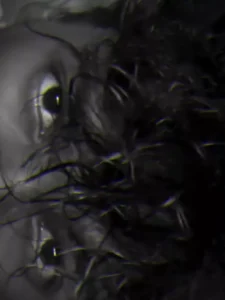
The Eye Close-Up CapCut Template is a ready-made video-editing format focused on close-up shots of the eyes or face. A typical edit may begin with a wider portrait or video clip before transitioning into a close-up view. Effects, transitions, zoom movements and music synchronization can then create a more dramatic appearance. The exact design can vary because different CapCut creators may publish their own versions of an eye-focused template. CapCut describes templates as pre-designed editing layouts that can include elements such as transitions, animations, text, stickers, filters and effects. These elements can be applied to your own photos or videos. (CapCut) You can also find eye-focused templates through CapCut’s official template collection. (CapCut)
Why Is the Eye Close-Up Edit Popular?
Close-up editing works because it draws attention to a specific part of the subject instead of showing the entire frame throughout the video. The eyes can also communicate emotion without requiring a complicated scene. A simple portrait can therefore become more interesting when the edit gradually moves toward the eyes and synchronizes the transition with the audio.
This style can be suitable for different types of content, including:
- Portrait videos
- Couple edits
- Romantic Reels
- Fashion videos
- Aesthetic photography
- Emotional edits
- Attitude videos
- Cinematic short videos
The important thing is to choose footage that actually suits the close-up effect.
What Makes a Good Eye Close-Up Video?
Using a template does not automatically make every video look good. The original footage matters just as much as the template. For the best result, try to use a clear photo or video where the eyes are visible and reasonably sharp. Avoid images where the face is heavily covered by sunglasses, hair or other objects unless the template is specifically designed for that type of shot. Good lighting is also helpful. If the original image is extremely dark or blurry, the close-up may make those problems more noticeable. A front-facing portrait can work well, but you can also experiment with slightly different angles if the template supports them.
How to Choose Photos or Clips for the Template
Before opening CapCut, look through your gallery and select media that matches the editing style. If the template focuses heavily on the eyes, choose a photo where the face is clearly visible. A high-resolution portrait will generally provide a cleaner result than a heavily compressed image. For video clips, avoid footage with excessive camera shake. Keep the subject reasonably centered so that the important part of the face remains visible after cropping. You can prepare several options and test them before deciding which one looks best.
How to Use the Eye Close-Up CapCut Template
CapCut’s official instructions explain that templates can be found through the Templates section and then customized using your own photos or videos. The exact interface can vary depending on the device, app version and region. (CapCut)
Step 1: Open CapCut
Install or open the CapCut application on your phone.
If the Templates option is available in your version, open the Templates section.
Step 2: Search for an Eye Template
Use the search option and try terms such as:
Eye Close-Up
Eye Edit
Eyes Template
Close-Up Template
You can also explore CapCut’s official eye-template collection to find a suitable design. (CapCut)
Step 3: Preview the Template
Do not select the first template you see. Watch the preview carefully and check how many photos or video clips it requires. Pay attention to the timing of the close-up effect. This will help you choose media that fits the template properly.
Step 4: Tap Use Template
Once you find a suitable design, select Use template.
CapCut will ask you to select the photos or videos required by the template.
Step 5: Add Your Photos or Videos
Choose the media from your gallery. Try to match the original composition of the template. If the preview shows a centered face, choose a centered portrait rather than a photo where the subject is positioned at the extreme edge.
Step 6: Adjust the Clips
Depending on the template, you may be able to replace, crop or adjust individual clips. Check the framing carefully, especially around the eyes and face. CapCut’s current template guidance allows users to replace or crop their media after applying a template. (CapCut)
Step 7: Preview the Complete Edit
Watch the entire video before exporting it. Check whether the eye close-up happens at the right moment and whether the face remains properly positioned throughout the edit. If one photo does not fit correctly, replace it with another rather than forcing the crop.
Step 8: Export the Video
Once you are satisfied with the result, use CapCut’s export option to save or share your completed video. CapCut provides export and sharing options after the template has been customized. (CapCut)
How to Make the Eye Close-Up Effect Look Better
A template provides the basic editing structure, but you can still improve the final result through better media selection.
Use Sharp Photos
The eye area becomes the main focus, so image quality matters. A low-resolution image may look acceptable when viewed normally but become noticeably pixelated after a strong zoom.
Keep the Eyes Clearly Visible
Choose photos where the eyes are not hidden by hair, sunglasses or heavy shadows. This allows the close-up effect to work more naturally.
Match the Face Position
If the template expects the face to appear in the center, use a photo with a similar composition. This reduces awkward cropping.
Avoid Excessive Effects
You do not necessarily need to add more filters, transitions or stickers after applying a template. If the template already has a strong visual style, additional effects can make the video look unnecessarily busy.
Choose Music Carefully
Music can influence the entire mood of the edit. If the template already contains suitable audio, preview it before replacing anything. If you use different audio, make sure the transition still matches the important beat.
Can You Use the Template for Instagram Reels?
Yes. An Eye Close-Up CapCut Template can be used to create a short vertical video for platforms such as Instagram Reels. Before publishing, watch the final video once on your phone. Make sure the face is not cropped incorrectly and that any text or important visual elements are visible. If the video uses copyrighted music, make sure your use of that audio follows the applicable platform and copyright rules.
What If the CapCut Template Is Not Showing?
Sometimes the Templates option may not appear in CapCut. According to CapCut’s official help information, template availability can depend on the app version, device and region. CapCut also notes that some users may not see the Template button when the feature is unavailable for their particular version or region. (CapCut) If you cannot find the template, try the following: Update the CapCut application. Check whether you are signed in. Make sure your internet connection is working. Search using a slightly different keyword. Check the Templates section rather than the normal editing timeline. You can also look for the same style through CapCut’s official template pages.
Can You Use CapCut Templates on PC?
CapCut’s template functionality differs between platforms. CapCut’s current documentation states that mobile provides the full template experience, while desktop and web availability can be more limited depending on the template and platform. (CapCut) Therefore, if you are specifically looking for a community or trending template, the mobile application may provide more options than the desktop version.
Common Mistakes to Avoid
Many template edits look less attractive because of poor source material rather than the template itself. Avoid using extremely blurry photos. Do not select a portrait where the eyes are outside the main frame. Do not add too many effects after applying the template. Do not use random photos that have completely different lighting and composition Do not export the video without checking the complete preview. Most importantly, do not assume that using a trending template automatically makes a video successful. The final quality still depends on the footage, editing choices and how well the content fits the intended audience.
Is the Eye Close-Up CapCut Template Free?
The availability of individual CapCut templates can vary. Some templates may be available for direct use, while access to certain features or templates can depend on the current CapCut version, region or creator settings. Instead of relying on third-party download pages, check the template directly through CapCut when possible.
Where Can You Find More Eye Templates?
CapCut has an official collection dedicated to eye-focused templates. It includes different styles designed around close-ups and eye-related visual effects. (CapCut)
You can explore the official collection here:
This is useful if one particular Eye Close-Up template is no longer available or does not match your footage.
Frequently Asked Questions
What is the Eye Close-Up CapCut Template?
It is a ready-made CapCut editing format that focuses on close-up shots of the eyes or face. Users can apply the design to their own photos or videos.
How do I use the Eye Close-Up CapCut Template?
Open CapCut, go to the Templates section, search for an eye or close-up template, select a suitable design and tap Use template. Then add your own photos or videos and preview the result before exporting. (CapCut)
What photos work best with an eye template?
Clear, well-lit portraits where the eyes and face are visible usually work best. High-resolution photos are preferable because the template may zoom into the face.
Can I use an Eye Close-Up template for Instagram?
Yes. You can use a suitable CapCut template to create a short vertical video for Instagram and other social platforms. Make sure your final video follows the applicable platform and copyright rules.
Why is my face getting cropped incorrectly?
The problem is usually related to the original photo’s composition or the template’s required framing. Try selecting a more centered photo or adjust the crop if the template allows it.
Why can’t I find the Template option in CapCut?
Template availability can vary by app version, device and region. Updating CapCut and checking the correct Templates section may help. (CapCut)
Can I use my own music?
Depending on the template and editing setup, you may be able to modify or replace audio. Always make sure you have the appropriate rights to use music when publishing the finished video.
Final Words
The Eye Close-Up CapCut Template 2026 is a simple way to create a dramatic portrait edit without building every transition from the beginning. The most important part is not simply finding a trending template. Choose clear footage, keep the eyes visible, match your photos to the template’s framing and preview the complete edit before exporting. If one template does not work well with your photos, try another design instead of forcing the crop. CapCut’s official template library provides multiple eye-focused options, so you can experiment until you find a style that fits your footage. (CapCut) For the safest experience, use CapCut’s official template features and avoid downloading modified or unknown template files from third-party sources.