Want to create a cinematic Garba dance video featuring your own photo without recording yourself dancing? With AI video generation, you can use a reference video for the dance performance and a separate photo of the person you want to feature. The AI tool then attempts to recreate the dance movements, expressions and camera motion using the person in your photo.
In this tutorial, you will learn how to create a Garba AI dance video using a reference video and a target image. You will also get a ready-to-copy AI prompt, step-by-step instructions, tips for improving facial consistency and solutions to common generation problems. The exact result depends on whether your chosen AI tool supports both reference-video guidance and image-based character replacement.
What Is Garba AI Dance Video Editing?
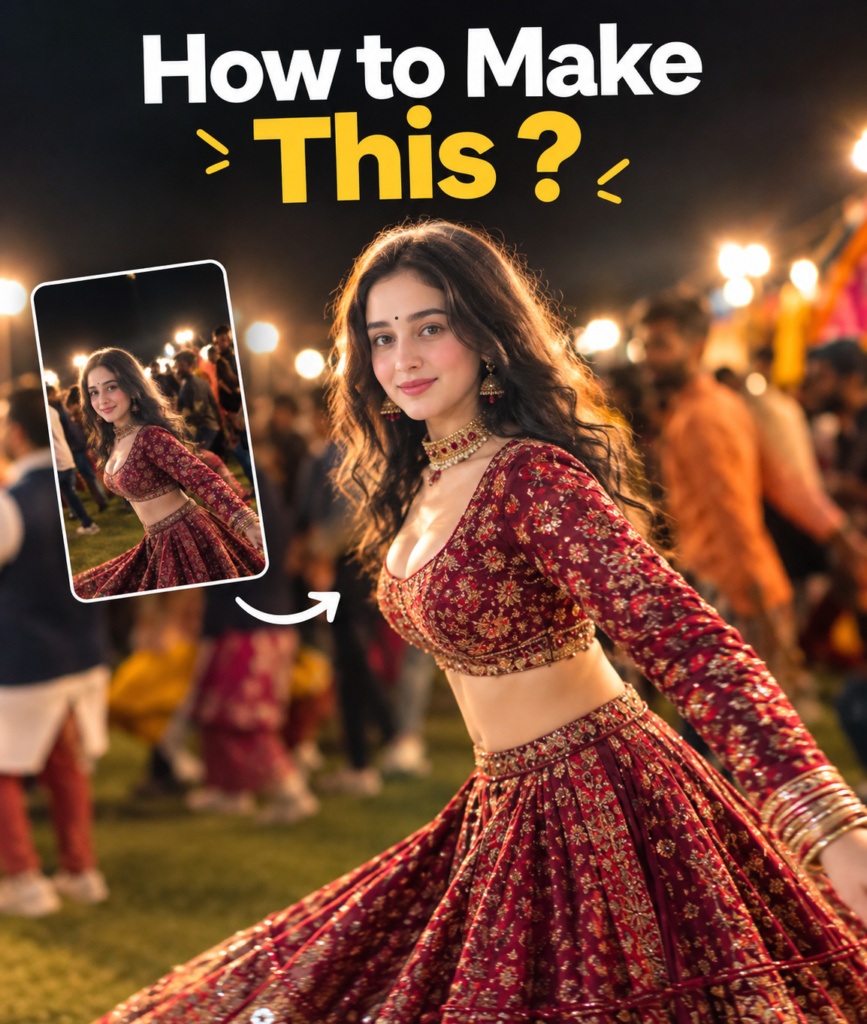
Garba AI dance video editing is a way to create a dance clip by combining an existing dance video with a separate reference photo. Instead of recording a new performance, you use the original video to guide the movement and camera direction while the target image provides the appearance of the person you want to show.
For example, you can use a video of a dancer performing energetic Garba-inspired movements and a photo of yourself wearing traditional clothing. An AI video generator with the appropriate reference features can attempt to transfer the performance to your photo.
The process can help you create Navratri-themed videos, traditional dance edits and creative social media content. However, AI-generated results may contain facial changes, distorted hands, inconsistent clothing or differences from the original choreography, so the finished video should always be reviewed before publishing.
What You Need to Create a Garba AI Dance Video
Before starting, prepare the following items.
1. Target Image: This is the photo of the person who should appear in the final AI-generated video. Choose a clear, high-quality image with visible facial features. If you want the AI to generate full-body dance movements, a photo showing more of the person’s body may be helpful.
2. Reference Video: This is the existing dance clip whose movements, timing, expressions and camera motion you want the AI to follow. Choose a video with a clearly visible dancer and movements that the selected tool can interpret. Use a video you own or have permission to use.
3. AI Video Generation Tool: You need a platform that supports both an image reference and video-based motion guidance, or an equivalent character-replacement workflow. Not every image-to-video generator supports reference-video motion transfer, so check the available features before uploading your files.
4. Video Editing App: An editor such as CapCut or VN Video Editor can help you trim the final clip, add suitable music, adjust the framing and prepare a vertical version for social media.
How to Create a Garba AI Dance Video Step by Step
Step 1: Choose Your Target Image
Select the photo of the person you want to appear in the finished video. A sharp image with good lighting and clearly visible facial features gives the AI a better starting point.
For a dance sequence, consider using a photo in which the person’s body is visible and not heavily cropped. If the original image shows only the face, the AI may need to invent more of the body, clothing and movement, which can lead to inconsistent results.
Use your own photo or an image you have permission to animate. Do not use another person’s likeness in a misleading or harmful way.
Step 2: Select the Reference Dance Video
Choose the video that contains the Garba or Garba-inspired dance performance you want to recreate. This video guides the movement and camera direction; it is not the photo of the person who should replace the original dancer.
Check that the dancer is visible throughout the important parts of the clip. Very fast movement, frequent cuts, obstructed limbs or dramatic camera changes may make the transfer more difficult.
Important: You need to upload this video into the AI tool’s reference-video, motion-reference or video-guidance field, if the tool provides one. Do not upload it into the target-image field.
Step 3: Open an AI Tool That Supports Both References
Open your chosen AI video generation platform and look for a workflow that supports a target image plus a reference video. Depending on the tool, the feature may be called video reference, motion transfer, character replacement or something similar.
Upload the target image into the image or character-reference field. Then upload the original dance clip into the reference-video or motion-guidance field.
If your selected platform supports only text-to-video or image-to-video generation without reference-video guidance, the exact workflow described in this tutorial may not be available. In that case, choose a compatible tool rather than assuming that a text prompt alone will reproduce the original performance.
Step 4: Copy and Paste the Garba AI Dance Video Prompt
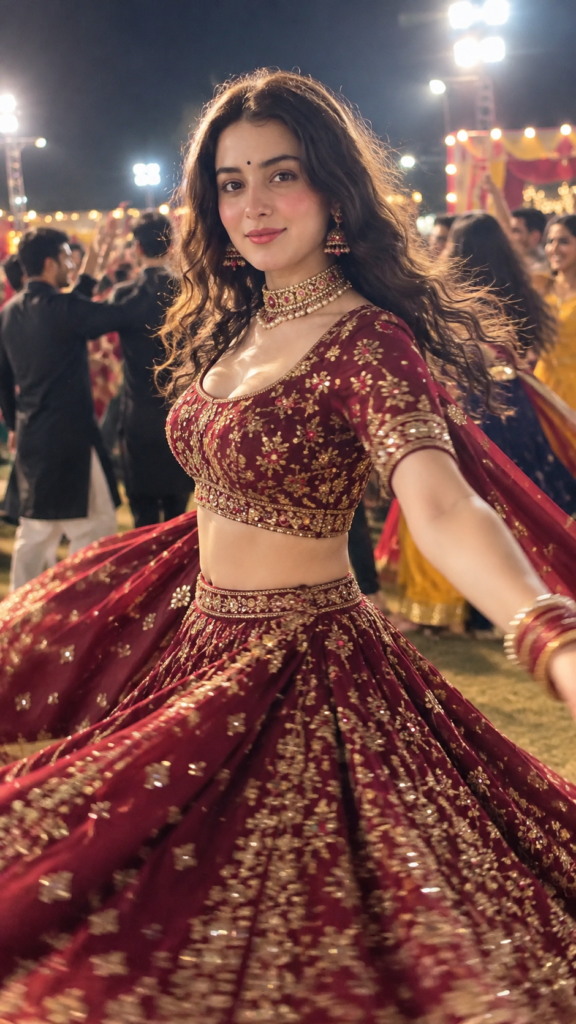
Once both files have been uploaded to the correct fields, copy the prompt below and paste it into the AI tool’s main prompt box. The prompt explains which input should control the person’s appearance and which input should guide the dance performance.
Do not paste the prompt into the target-image or reference-video upload field. Those fields are for the files themselves; the prompt belongs in the text instruction box.
Ready-to-Copy Garba AI Dance Video Prompt
Copy Prompt:
Note: This prompt guides the model but cannot guarantee an exact copy of the reference performance or perfect identity preservation. The output may differ depending on the AI platform, reference files and available settings.
Step 5: Generate the Video and Review the Result
Start the generation process and wait for the tool to finish. Processing time and generation limits vary by platform and plan.
Watch the entire video before downloading it. Check whether the person’s face remains consistent, the clothing looks stable and the dance movements are reasonably natural. Pay attention to spinning movements, hands, feet, jewelry and transitions between camera shots.
If the result is not satisfactory, try improving the reference photo or selecting a clearer dance clip. You can also simplify the prompt or reduce the complexity of the requested movements. Generate another version if the tool allows it, but remember that each attempt may produce different results.
Step 6: Edit the Final Video in CapCut or VN Video Editor
After generating a satisfactory clip, download it and import it into your preferred video editor. Trim any unwanted opening or ending frames and remove sections with obvious visual distortions when possible.
For a vertical social media video, set the canvas to 9:16 if appropriate. Check that the person’s face, hands and important dance movements remain visible after cropping. You can add a short title, adjust brightness and contrast, and use simple transitions where they improve the viewing experience.
If you add Garba music, make sure you have the necessary permission or use music provided under the destination platform’s applicable usage terms. Export the video using a resolution and format supported by the platform where you intend to publish it.
Tips for Better Garba AI Dance Video Results
Use a clear target image. A sharp photo with visible facial features can help the AI maintain a more consistent appearance. Avoid heavily filtered images or photos where the face is obscured.
Choose a suitable reference video. A clip with a clearly visible dancer and understandable movements may be easier to process than a video with frequent cuts, obstructions or extreme camera movement.
Keep the clothing description consistent. If you want a maroon-and-gold lehenga, describe that outfit clearly instead of requesting several different costumes in the same clip.
Review fast movements carefully. Spinning, rapid hand gestures and complex footwork can expose animation errors. If these sections look unnatural, try a simpler motion reference or a shorter clip.
Avoid excessive effects. Strong filters, multiple transitions and heavy color grading cannot fix an inconsistent AI-generated face or distorted body movement. Correct the source and generation settings first.
Check the complete export. A preview may look acceptable while individual frames contain glitches. Review the downloaded video before sharing it publicly.
Common Problems and How to Fix Them
The Target Person’s Face Changes
This can happen when the model struggles to preserve identity during rapid movement or changing camera angles. Try a clearer target photo, reduce unnecessary camera movement and use the tool’s identity-reference controls if available. Perfect facial consistency is not guaranteed.
The AI Does Not Follow the Reference Dance
Some tools use a reference video only as general visual guidance rather than transferring every movement exactly. Check whether the platform explicitly supports motion transfer or video-based performance guidance. If it does, use a reference clip with clear movements and avoid adding conflicting instructions.
The Clothing or Jewelry Changes During the Video
AI models may reinterpret detailed garments and accessories as the body moves. Keep the outfit description consistent and avoid adding unnecessary costume changes. Review spinning and close-up sections carefully, as these may reveal changes in fabric or jewelry.
The Hands or Body Look Distorted
Complex movements and partially hidden limbs can result in visual errors. Try a clearer reference clip, simpler choreography or a shorter generation. If the tool supports different motion or reference settings, consult its documentation before adjusting them.
The Result Looks Different From the Original Video
The generated output is an AI interpretation, not necessarily a frame-by-frame replacement. Differences in choreography, timing, facial expression and camera movement can occur. Choose a tool designed for reference-video motion transfer if close movement matching is your priority.
How to Make Your Garba AI Video More Engaging
Start with a visually clear moment rather than a long blank introduction. Keep the dance sequence focused, remove distracting glitches and choose a cover image that accurately represents the finished video.
Write a caption that describes the AI editing process and use relevant hashtags such as #Garba, #Navratri and #AIVideo when appropriate. Hashtags may help categorize your content, but they cannot guarantee views or viral reach.
If you publish tutorials, explain which tool and settings you actually used. Showing genuine screenshots of the upload fields and generation process can help beginners follow your instructions more easily. Do not present illustrative images as real screenshots of a tool you have not tested.
Image Rights, Music and Responsible Publishing
Before publishing an AI dance video, check the rights associated with both the target image and the reference video, as well as the terms of the AI tool. Use content you own or have permission to use. If another person appears in the source material, respect their privacy and avoid presenting the generated performance as an authentic recording of them.
Music also requires attention. A song being available online does not automatically mean you can reuse it in every video or monetize it on every platform. Review the music licensing rules and the applicable copyright and AI-content policies of the platform where you plan to publish.
Frequently Asked Questions
Where should I upload the reference video?
Upload it into the AI tool’s reference-video, motion-reference or video-guidance field. The exact label depends on the platform. Do not upload it into the target-image field.
Where should I upload my photo?
Upload your photo into the target-image or character-reference field. This image tells the AI which person’s appearance you want to use in the final video.
Where do I paste the AI prompt?
Paste the prompt into the main text prompt or instruction box after uploading both the target image and the reference video. The prompt is not an image or video file.
Can every AI video generator transfer dance movements from a reference video?
No. Some tools support only text-to-video or image-to-video generation, while others offer reference-video guidance or motion-transfer features. Check the current capabilities of your chosen platform before following this workflow.
Will the generated video have exactly the same dance movements and camera angles?
Not necessarily. The prompt asks the model to follow the reference, but results vary with the tool, source video and settings. Small differences or visible animation errors may remain.
Can I use the video on Instagram Reels and YouTube Shorts?
You can prepare a suitable vertical edit for these platforms, but check their current format, copyright and AI-content requirements before publishing. Use appropriate music rights and disclose AI-generated content where required.
Final Thoughts
Creating a Garba AI dance video using a target image and a reference video can be an effective way to experiment with festive AI animation. The key is to upload each file into the correct field, use a clear prompt and review the generated performance before editing.
Remember that the target image guides the person’s appearance, while the reference video guides the requested performance when the selected AI tool supports that workflow. With suitable source files, careful testing and responsible use of images and music, you can create a more polished Garba-themed video for your audience.