AI video editing is evolving faster than ever, and honestly, some trends are impossible to ignore. One of the biggest viral edits right now is Kalyani AI Video Editing. If you’ve spent a few minutes on Instagram Reels, YouTube Shorts, or TikTok, chances are you’ve already seen this cinematic transformation. A person sits quietly on a road, checks their phone, and within seconds the entire scene changes into a colorful flower garden. It looks magical, yet surprisingly realistic. The best part? You don’t need expensive editing software or years of experience. With a few AI tools and the right prompt, you can recreate the same effect on your phone or PC. In this guide, you’ll learn exactly how Kalyani AI Video Editing works, what tools you’ll need, how to record the original footage, generate AI images, create the final cinematic animation, and make your video look professional enough for social media.
What is Kalyani AI Video Editing?
Kalyani AI Video Editing is a trending AI-powered editing style where an ordinary road scene transforms into a beautiful landscape filled with colorful flowers. The transition happens smoothly with the help of AI-generated images and frame-to-video animation. The video usually begins with someone sitting alone on a road while looking at their phone. A floating 3D message appears, creating an emotional moment. After reading it, the person lies down on the road. Then comes the wow moment. Within seconds, AI transforms the empty road into a vibrant flower field with cinematic lighting and floating petals. That’s exactly why this editing style is getting millions of views across Instagram Reels and YouTube Shorts.
Why is Kalyani AI Video Editing Going Viral?
Let’s be real. Social media users love content that surprises them within the first few seconds. This editing style does exactly that. Instead of using heavy visual effects manually, AI creates a realistic environment transformation that feels like a movie scene. The smooth animation keeps viewers watching until the end, which often increases watch time and engagement. Another reason behind its popularity is simplicity. You don’t have to learn After Effects or any complicated editing software. Most of the work is handled automatically by AI. That’s why both beginners and experienced creators are using this trend.
Features of Kalyani AI Video Editing
This viral AI edit stands out because it combines storytelling with realistic visual effects.
Some of its best features include:
- Cinematic environment transformation
- AI-generated flower landscape
- Smooth frame-to-video animation
- Floating flower petals
- Realistic lighting effects
- Emotional storytelling
- Beginner-friendly workflow
- High-quality cinematic output
- Works perfectly for Instagram Reels and YouTube Shorts
These effects make even a simple recording look professional.
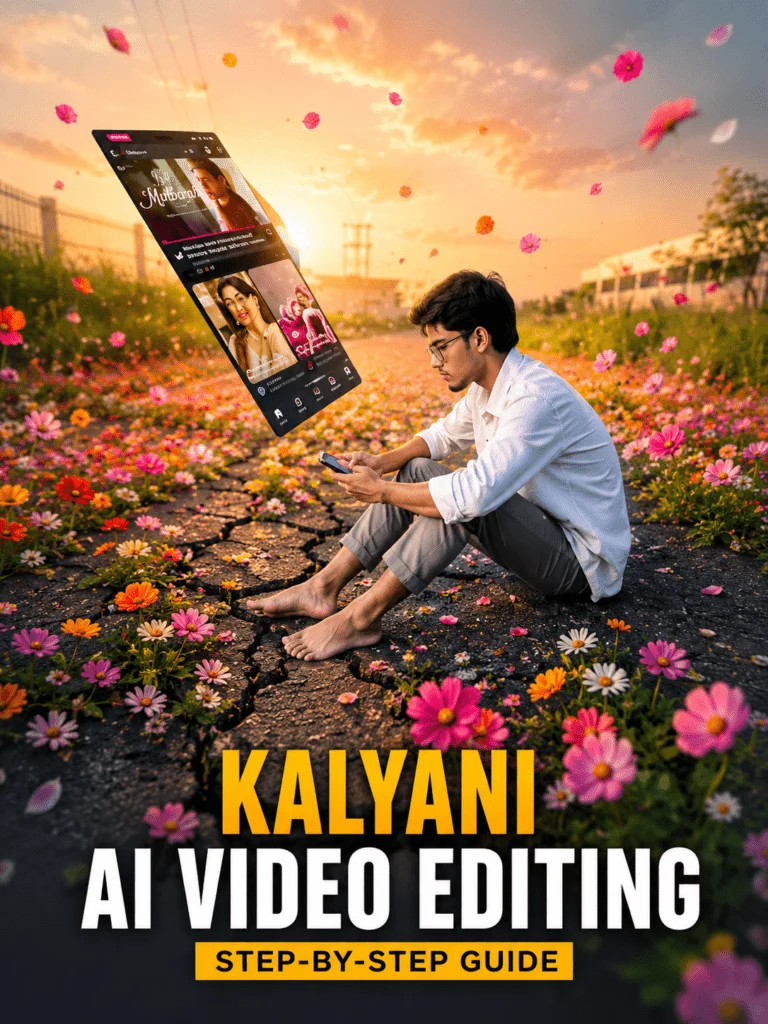
Image Prompt
Step 1: Record Your Original Video for Kalyani AI Video Editing
Everything starts with a good video. Choose a quiet road, empty street, or open location where there aren’t many people around.
For better results:
- Record during golden hour.
- Hold your phone steady.
- Sit naturally while looking at your phone.
- Slowly place or drop the phone.
- Lie down calmly just like the viral trend.
Once you’ve finished recording, pause the video when you’re lying on the road and take a clear screenshot. This screenshot will become the base image for your AI generation.
Step 2: Generate the AI Image
Now comes the fun part. Open an AI image generator like ChatGPT Image Generator or Google Gemini. Upload your screenshot and use the AI prompt provided in the article. The AI will keep your pose exactly the same while transforming the empty road into a colorful flower garden filled with blooming flowers, green grass, soft sunlight, and cinematic depth. Honestly, this single step creates the biggest visual impact in the entire edit.
Step 3: Generate the AI Video
After your AI image is ready, open a Frame-to-Video AI tool like Flow AI.
Upload:
- Your original screenshot
- The AI-generated flower image
Now paste the video prompt and start generating. Within a few minutes, AI automatically creates a smooth transition between both scenes. The final animation looks incredibly realistic because the movement feels natural instead of robotic.
Video Prompt
Edit the Final Video in CapCut
Once your AI video is ready, you can make it even better using CapCut.
You can:
- Trim unnecessary parts.
- Add cinematic background music.
- Insert subtitles.
- Apply smooth transitions.
- Adjust brightness and colors.
- Export in Full HD or 4K.
These small improvements make a huge difference.
Tips for Better Kalyani AI Video Editing Results
If you want your final video to look more realistic, don’t ignore these tips. Always record in natural daylight because AI understands clear images much better. Use a high-resolution screenshot instead of a blurry frame. Avoid crowded backgrounds. Keep camera movement smooth. Write detailed AI prompts instead of short ones. Export your final video in the highest quality available. Little improvements like these often make your edit look far more professional.
Note
Some AI tools may generate slightly different results each time because every generation is unique. If the first output doesn’t look perfect, simply regenerate the image with a more detailed prompt or improve your original screenshot. Better input almost always produces better AI results. Also, some AI platforms have daily free limits, so you may need to wait before generating additional videos.
Why Creators Love Kalyani AI Video Editing
One of the biggest reasons creators prefer this trend is speed. Earlier, making this kind of transformation required advanced VFX skills and hours of editing. Now AI completes almost everything automatically. That’s why creators can produce more content, follow trending edits quickly, and spend more time creating instead of editing. Many creators also visit Rohan Editz to discover the latest AI prompts, video editing tutorials, and viral editing ideas before they become mainstream.
Conclusion
Kalyani AI Video Editing is one of the most creative AI editing trends of 2026. It transforms a simple road video into a stunning flower garden using the power of AI image generation and cinematic animation. The process is simple. Record your original footage, capture a screenshot, generate an AI image, animate it with a Frame-to-Video AI tool, and polish everything inside CapCut. You don’t need professional editing knowledge to create this effect. With a little creativity and the right prompt, you can make eye-catching videos that stand out on Instagram Reels, YouTube Shorts, TikTok, and Facebook. If you enjoy experimenting with viral AI trends, keep exploring new prompts and editing ideas. Every new trend is another chance to create something people actually stop and watch.