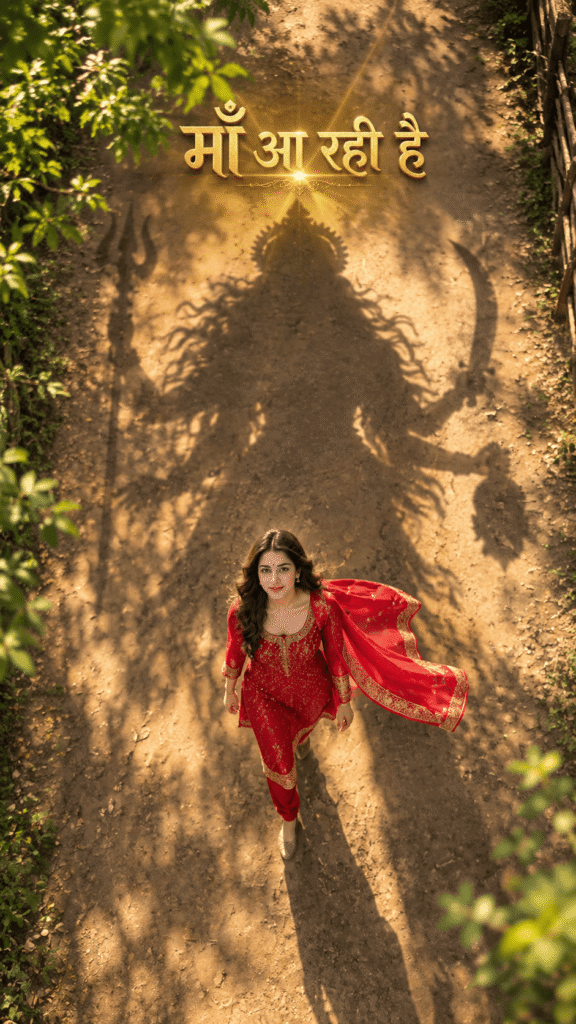
Want to create a cinematic devotional AI video using your own photo, dramatic sunlight and a powerful divine shadow effect? With a suitable AI image-to-video tool, you can turn a still image into a short vertical video featuring a woman walking along a rural pathway while the enormous shadow of Maa Kali appears to follow her. This Maa Kali AI video editing concept combines traditional Indian clothing, a bird’s-eye camera view, moving tree shadows, golden sunlight and a dramatic Hindi text reveal. In this tutorial, you will learn how to prepare your image, use the ready-to-copy AI video prompt, generate the scene and edit the final video for Instagram Reels, YouTube Shorts or WhatsApp Status.
What Is a Maa Kali AI Video Editing Prompt?
A Maa Kali AI video editing prompt is a text instruction that describes the scene, subject, movement, camera angle, lighting and visual effects you want an AI video generator to create. Instead of simply asking for a devotional video, you describe each important detail so the tool has clearer guidance. In this particular concept, a young Indian woman wearing a bright red salwar suit walks along a sunlit rural pathway. The camera follows her from a high, straight-down perspective while a large divine shadow inspired by Maa Kali appears on the ground behind her. The scene ends with glowing golden Hindi text. The final result depends on the AI tool, the uploaded image and its ability to maintain a consistent subject, follow camera instructions and generate readable text. You may need more than one attempt to get the desired effect.
What You Need Before Creating the Video
Before starting, prepare a clear image of the person you want to feature in the video and choose an AI video generator that supports image-to-video animation.
Target Image: This is the photo you want the AI to animate. Choose an image with a clear subject and an appearance that works with the intended full-body scene. If the uploaded photo shows only a close-up face, the tool may have to generate the missing body and clothing, which can produce inconsistent results.
AI Video Generator: Use a tool that allows you to upload an image and describe motion, camera direction, lighting and scene details through a text prompt. Features and settings vary by platform.
Video Editing App: An editor such as CapCut or VN Video Editor can help you trim the result, adjust the vertical framing and add text or audio if the AI-generated version needs further editing.
How to Create a Maa Kali AI Video Step by Step
Step 1: Choose Your Target Image
Select the photo you want to use as the starting point for the video. A clear, high-quality image can help the AI interpret the subject’s appearance. For this concept, a full-body image or a photo that gives the model enough visual information to construct the body may be useful. Use your own photo or an image you have permission to animate. If the image does not show a red salwar suit, the AI may change the clothing according to your prompt, but the result can vary.
Step 2: Open an AI Image-to-Video Tool
Open an AI video generation platform that supports image-to-video creation. Find the image upload field and add your selected photo. Depending on the platform, this field may be called Start Frame, Image Reference, Source Image or something similar. Check whether the tool supports vertical video generation. The prompt requests a 9:16 composition, which is commonly used for Reels and Shorts, but the final aspect ratio may also depend on the tool’s generation settings.
Step 3: Copy and Paste the Maa Kali AI Video Prompt
After uploading your image, locate the main prompt or instruction box. Copy the prompt below and paste it into that box. Do not paste the text into the image upload field. The prompt describes the woman’s clothing, walking motion, overhead camera view, divine shadow, outdoor lighting, final Hindi text and devotional atmosphere. If your AI tool provides separate controls for duration, aspect ratio or audio, configure them according to the available options.
Ready-to-Copy Maa Kali AI Video Editing Prompt
Copy Prompt:
How to Improve the Final AI Video
Use a Suitable Starting Image
The starting image influences the entire animation. A clear subject with enough visible body detail can make it easier for the model to generate a walking sequence. If the face or clothing changes noticeably during movement, try a better source image or a tool with stronger image-reference controls.
Keep the Divine Shadow Visible
The shadow is the central visual element of this concept. Review the video to check whether the silhouette stays behind the woman and whether its crown, arms and symbolic objects remain reasonably consistent. If the shadow disappears or changes shape too much, simplify the scene description or generate a shorter clip.
Check the Overhead Camera Angle
The prompt requests a straight-down bird’s-eye perspective. Some tools may introduce an angled or ground-level shot even when the instruction is clear. If the overhead view is essential, use a tool with camera or composition controls where available and review the framing before exporting.
Add the Hindi Text Manually if Necessary
AI-generated lettering can contain spelling mistakes or distorted characters, especially in scripts with complex letter forms. If the final text does not appear correctly, remove that part of the generated clip if possible and add “माँ आ रही है” manually using your video editor’s text feature. Choose a clear Devanagari font, a suitable golden color and a position that does not obscure the main subject.
Add Devotional Audio Carefully
If the generated video does not include audio, you can add temple bells, a subtle damru rhythm or suitable devotional music during editing. Use audio that you have permission to use and check the platform’s rules before publishing or monetizing the video.
Common Problems and Their Solutions
The Face Changes During Animation
The AI may struggle to maintain facial consistency while generating full-body movement or changing the scene. Try a clearer target image, avoid unnecessary visual transformations and use image-reference settings if the platform provides them.
Maa Kali’s Shadow Looks Distorted
Complex silhouettes can be difficult to generate consistently. Try simplifying the shadow description while retaining its most important features, such as the crown, multiple arms and trident. Shorter clips may also be easier to review and regenerate.
The Video Does Not Stay in a Top-Down View
A text prompt cannot guarantee a specific camera angle. Check whether your tool supports camera controls or image-to-video guidance. If it does not, you may need to try another compatible platform.
The Hindi Text Is Incorrect
Do not assume that an AI-generated text overlay will always be accurate. Add the final phrase manually in your editing app if the generated letters are unclear or misspelled. This gives you more control over spelling, placement and readability.
The Video Looks Different From the Prompt
AI models interpret instructions rather than following every detail perfectly. Review the result, identify the most important issue and adjust that part of the prompt or source image. Generating a few versions may help you find a better result.
How to Prepare the Video for Instagram Reels and YouTube Shorts
Once you are satisfied with the generated scene, import it into your video editor. Trim unnecessary frames, check that the woman and the shadow remain visible and make sure the final text does not overlap the main subject. Keep the 9:16 vertical format if it suits your destination platform. Review the exported file from beginning to end, including the final text reveal and audio. A polished video should have a clear visual focus, readable text and no distracting generation errors. You can write a caption explaining that the clip is an AI-created devotional visual and use relevant hashtags such as #MaaKali, #Navratri, #AIVideo and #DevotionalVideo. Hashtags can help describe the subject, but they do not guarantee reach or viral performance.
Frequently Asked Questions
Can I create this Maa Kali AI video using only one photo?
Yes, if your chosen platform supports image-to-video generation. The tool will attempt to animate the uploaded image based on the prompt. Results vary, especially when the source photo does not show the full body or the requested scene differs substantially from the original image.
Where should I paste the Maa Kali AI video prompt?
Upload your target image first, then paste the complete prompt into the main text prompt or instruction box. If your platform offers separate settings for aspect ratio, duration or audio, use those controls where available.
Can AI generate the Hindi text “माँ आ रही है” correctly?
It may, but accurate Devanagari text is not guaranteed. For a clean result, add the phrase manually in a video editor if the generated lettering is incorrect.
Can I use this prompt for Instagram Reels?
The prompt requests a vertical 9:16 video suitable for a Reels-style format. Check the final export and the platform’s current requirements before publishing.
Does this prompt guarantee a realistic divine shadow?
No. It describes the intended shadow and visual atmosphere, but the result depends on the AI model, source image and generation settings. Review the output and adjust the prompt if the shadow is unclear or inconsistent.
Final Thoughts
This Maa Kali AI video concept combines a red traditional outfit, an overhead walking shot, a dramatic divine shadow and a golden Hindi text reveal. By using a suitable target image, a clear prompt and careful final editing, you can experiment with a cinematic devotional video without recording the scene yourself. The most important steps are to choose a suitable image, describe the movement and camera angle clearly, check the generated shadow and correct the Hindi text before publishing. A final review helps ensure that the video matches your intended concept and provides a better viewing experience.